What is tax rate (VAT) charged for Spot Trade on KuCoin TR and how to retrieve the tax data
Last updated: 01/09/2026
1.What is The Tax Rate (VAT) Charged for Spot Trade on KuCoin TR?
Effective from July 30, 2024, a VAT of 20% will be applied to the trading fee for spot trade orders executed on KuCoin TR.
2.How to Calculate The Tax Charged?
Tax charged = Trading fee charged x 20%
For instance, if a user places a market buy order for BTC/USDT at an executed price of 60,000 USDT for 1 BTC, and the trading fee rate is 0.1%, the trading fee would amount to 60,000*0.1%=60 USDT. Consequently, the applicable VAT would be 60*20%=12 USDT.
For further information regarding trading fees, please visit https://www.kucoin.tr/privilege.
3.How to Retrieve and Download The Tax Data?
3.1 Query & Download via Trading Account (Web)
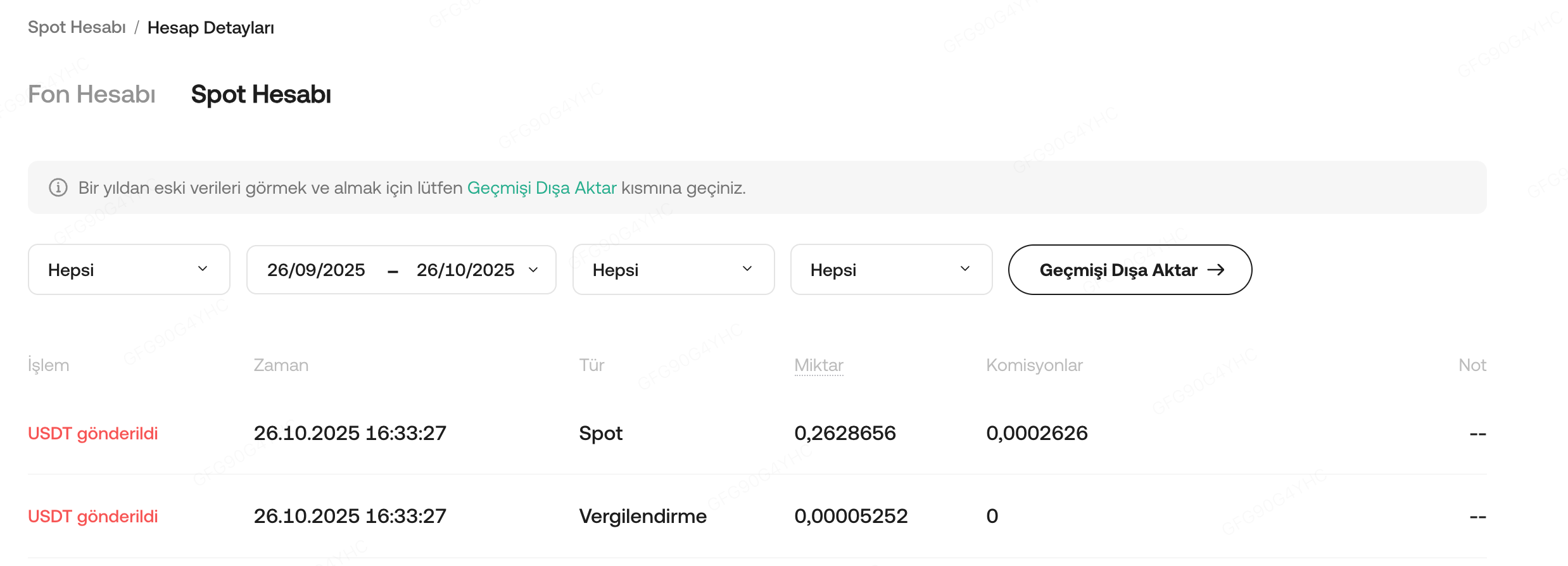
Step 1: Proceed to Trading Account after login or via link: https://www.kucoin.tr/order/trade/detail
Step 2: Refer to the transaction details including the breakdown of trading fees and tax.
Step 3: Click Export History to export a trading account statement after selecting the period.
Step 4: Wait for the bill to be generated and download once ready at https://www.kucoin.tr/account/download
3.2 Query via Spot Trade History and Download Daily/Monthly Bills (Web)
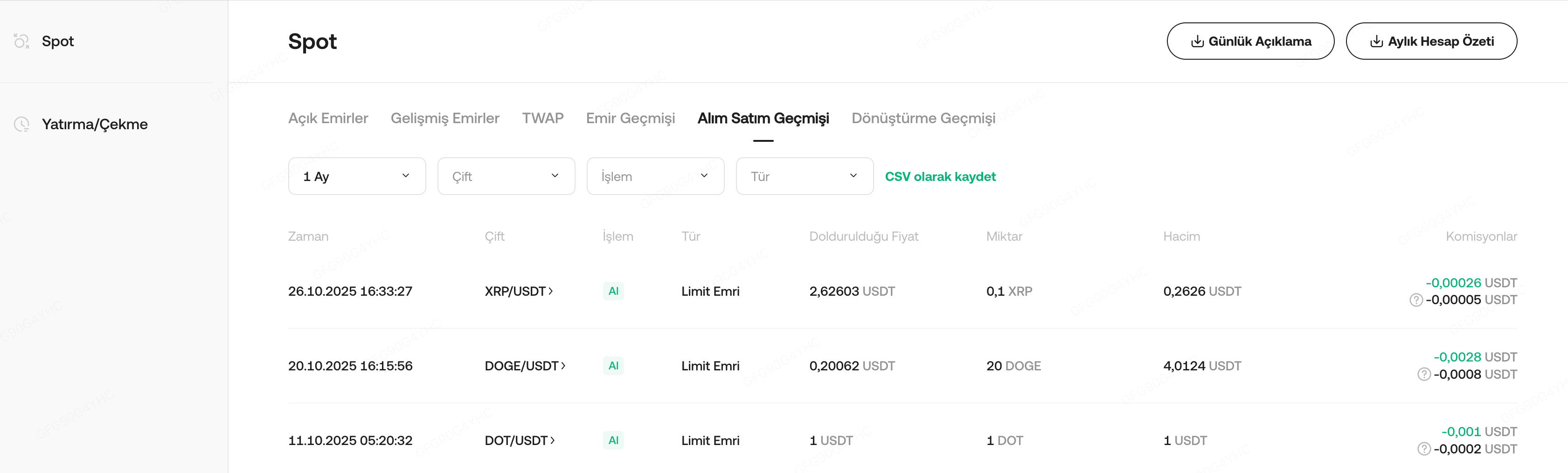
Step 1: Proceed to spot trade order page after login or via link: https://www.kucoin.tr/order/trade/detail
Step 2: Refer to the transaction details including the breakdown of trading fees and tax.
Step 3: Choose the type of bill (Daily or Monthly) and time range > Click Confirm to export.
Step 4: Wait for the bill to be generated and download once ready at https://www.kucoin.tr/account/download
3.3 Download Spot Orders History (Web)
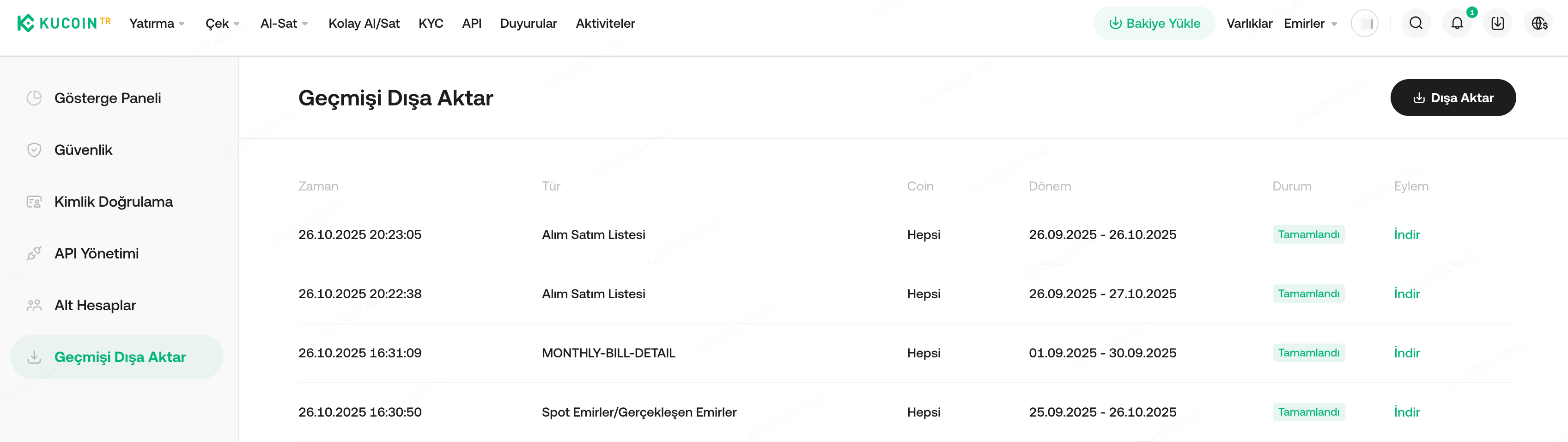
Step 1: Click Profile and Export History or directly via https://www.kucoin.tr/en/account/download
Step 2: Click Export > Select Spot Orders and time range > Click Confirm to export.
Step 3: Wait for the bill to be generated and download once ready at https://www.kucoin.tr/account/download
3.4 Query via Trading Page (Web&APP)
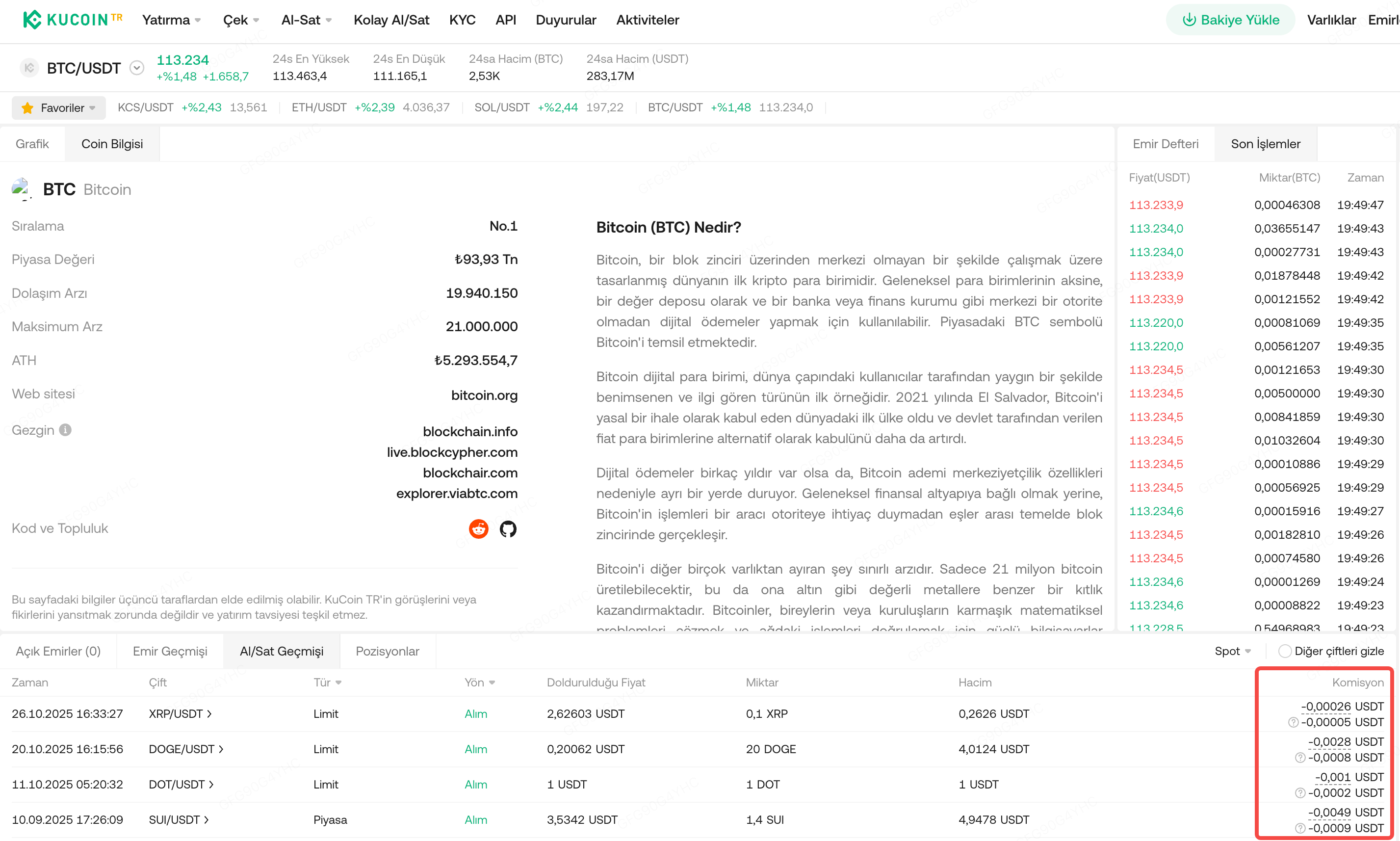
Step 1: Open trade history tab on the trading page
Step 2: Refer to the transaction details including the breakdown of trading fees and tax.
3.5 Query Trading Account (APP)
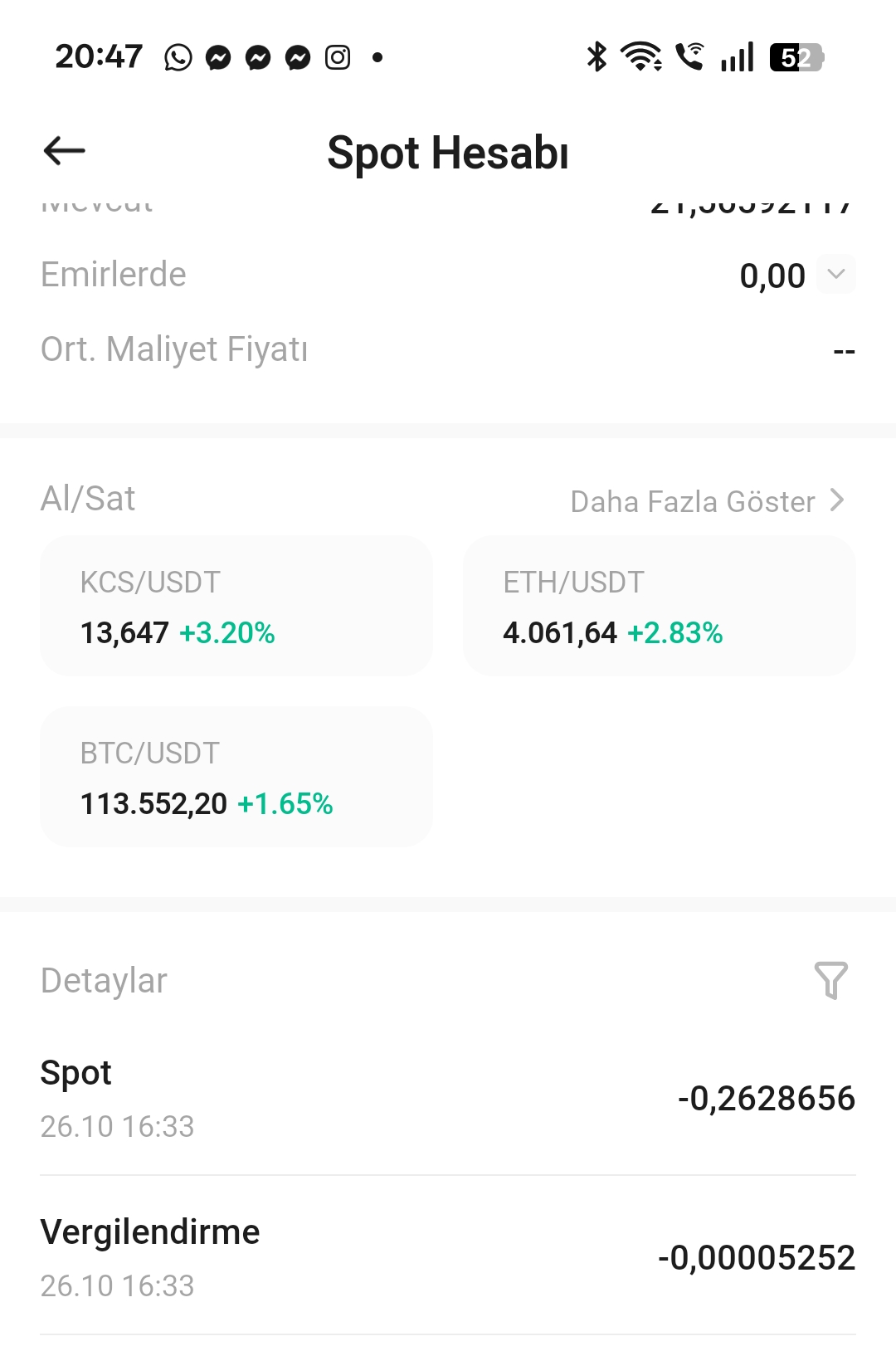
Step 1: Click Asset>Trading tab on APP
Step 2: Select any token traded on Spot and scroll below for the transaction details and tax charged
We hope this article has been helpful. If you have any other questions, please feel free to reach out to our customer support via online chat or submit a ticket.