This article introduces some basic security settings and multi-factor authentication as well as how to reset them.
Content
1. Security settings
2. How to Reset Security settings
1. Security Settings
1.1 Login Passwords
To effectively protect user accounts, KuCoin TR enforces strong password requirements. Your password must include an uppercase letter, a lowercase letter, a number, and be 10 to 32 characters long.
1.2 Multi-Factor Authentication (MFA)
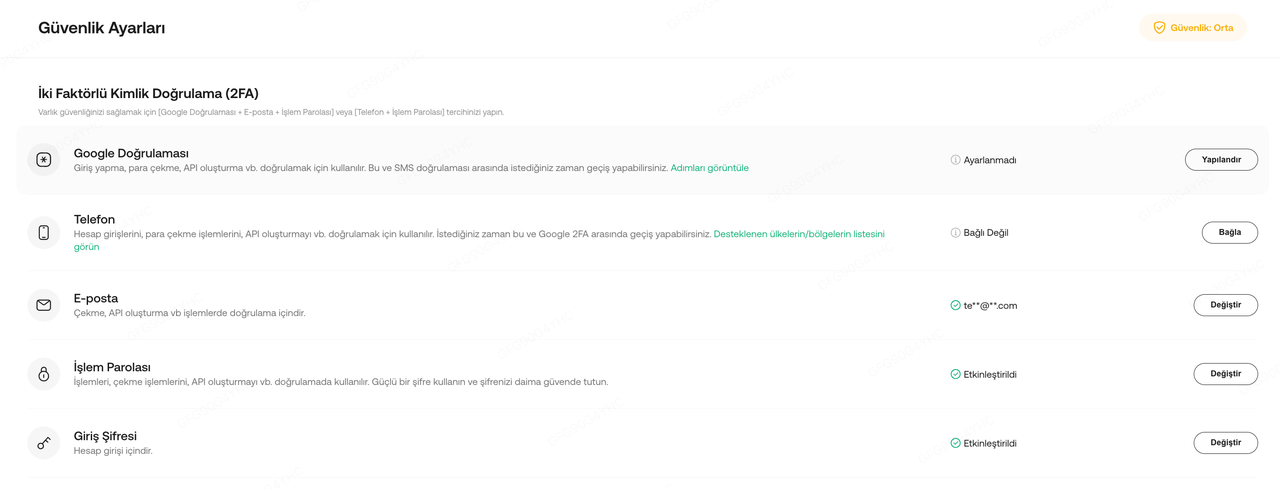
Multi-Factor Authentication (MFA) is a simple and effective measure that adds an extra layer of protection. When MFA is enabled, you perform a second type of verification in addition to entering your username and password.
KuCoin TR uses several MFA methods, including:
- Email verification codes
- Text message codes (SMS)
- Google Authenticator (Google 2FA)
Additionally, the KuCoin TR app offers biometric authentication options, such as fingerprint and facial recognition, for quick and secure identity verification. If the system detects significant anomalies in the device or IP address used to log into your account, or if it identifies recent actions that may pose risks to your account security, email verification links will be sent as an additional reinforcement. These measures help prevent account breaches caused by phishing attacks, telecom fraud, and other security threats.
1.3 Trading Password
Trading Password is a six-digit code set by users to verify all transactions on KuCoin TR, including spot, withdrawals and API-related actions.
2. How to Reset Security settings
2.1 How to access my account when I have lost my login password and account security setting(s)
If you forget your login password and account security setting(s), simply follow the steps below:
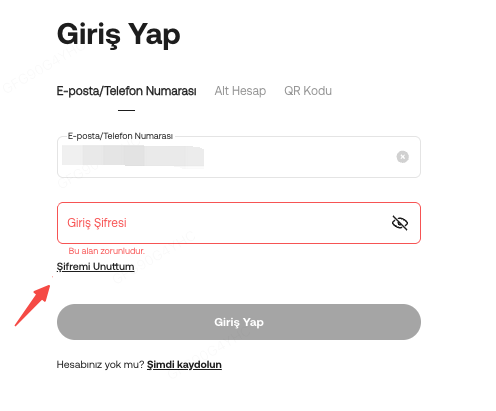
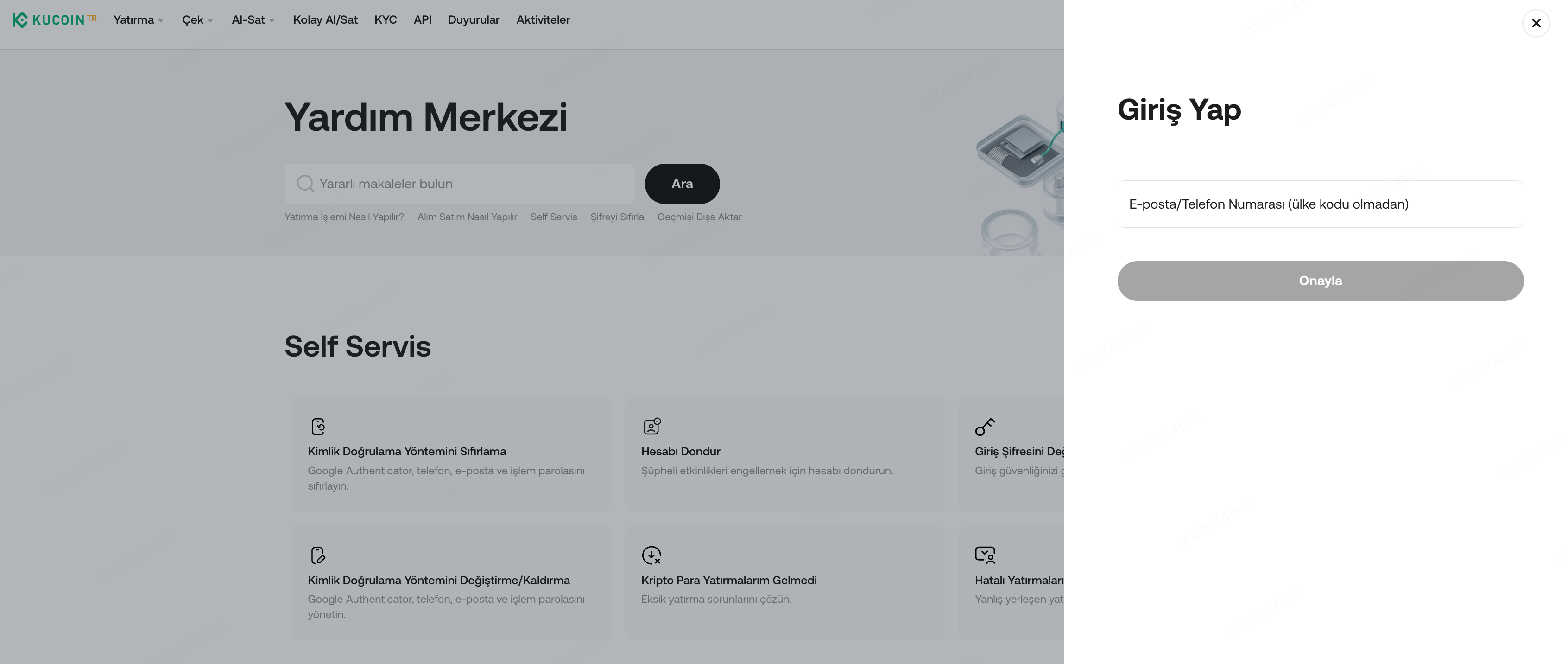
Step 1: Go to the KuCoin TR Login page and enter your registered E-mail address or phone number.
Step 2: Click on "Forgot password?" and confirm "Reset password".
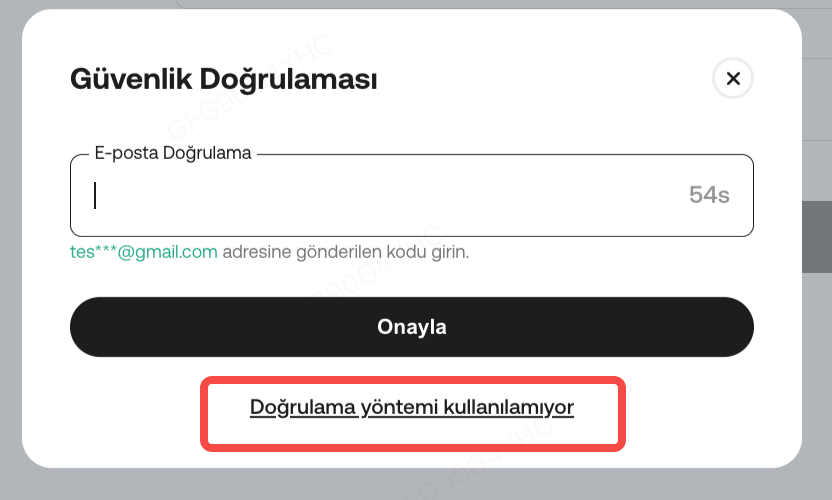
Step 3: If you have lost access to other security settings that prevent you from changing your login password, you may click "Verification method unavailable" to submit a request.
2.2 How to reset one or more account security settings and I still remember my login password
If you still remember your login password, but stuck at the security verification page, simply follow the steps below:
Step 1: Go back to the Login page, input your phone number or email address, then click "Log In" with your login password.
Step 2: Click on "Security verification not available".
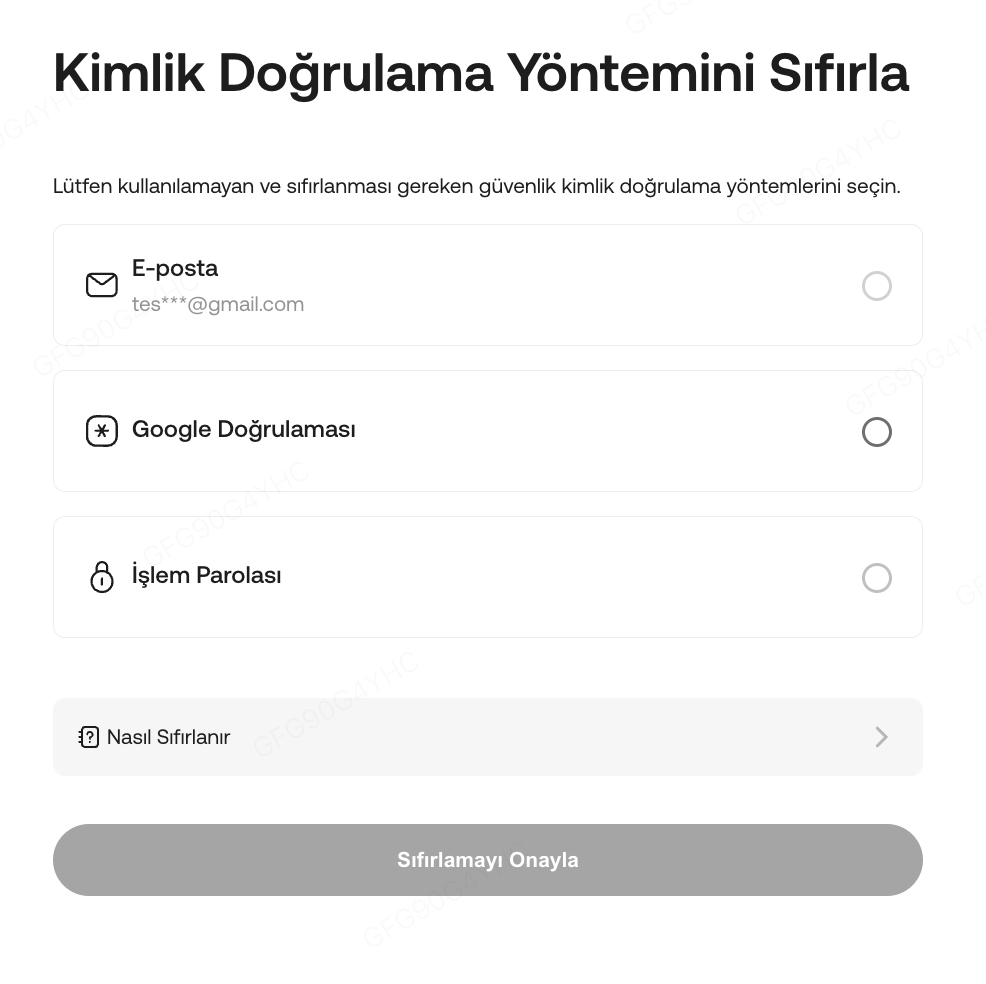
Step 3: Choose the unavailable security methods
Step4:Confirm resetting authentication method and complete the process.
2.3 How to reset one or more account security settings after login to my account
You may refer to the steps below to reset one or more account security settings once logged in to your account. Please follow the below instructions to submit your request:
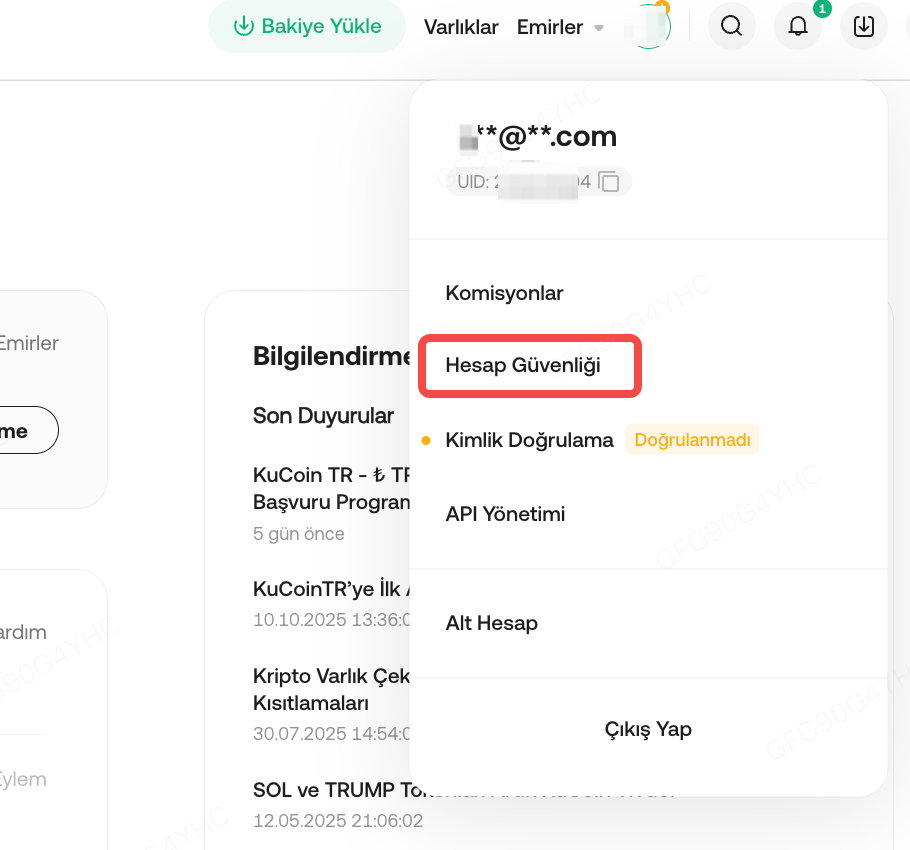
Step 1: Click on the avatar located on the upper right corner and select "Account Security".
Step 2: Locate the unavailable security settings , click on "Change" and click "verification method unavailable".
Step 3: Confirm resetting authentication method.
Step 4: Complete verification process.
2.4 How to reset one or more account security settings at Help center page
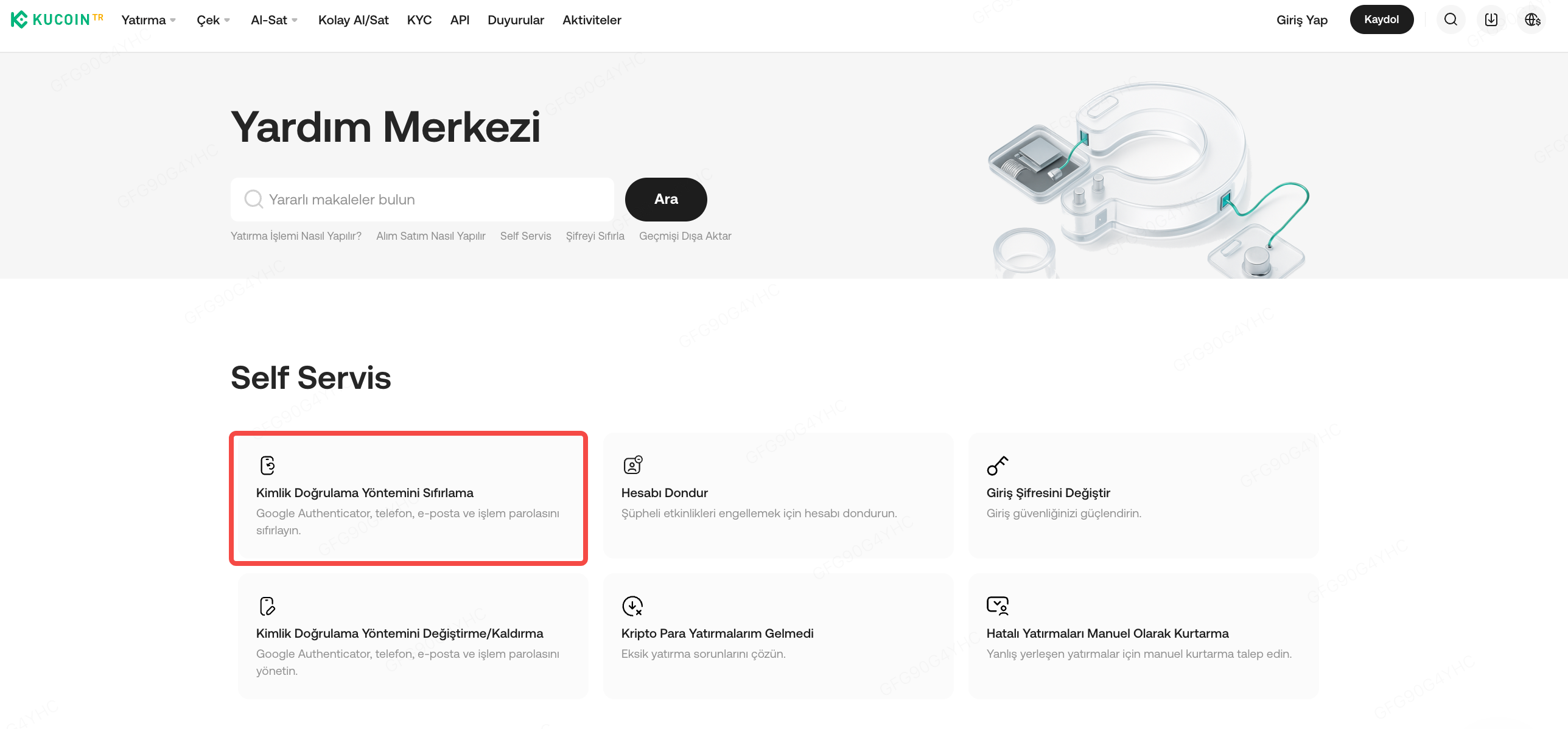
If you are unable to locate “Security verification not available” on the login page, we suggest that you consider resetting your authentication method via Help page https://www.kucoin.tr/support
Step 1: Click "Reset authentication method" on the Help page.
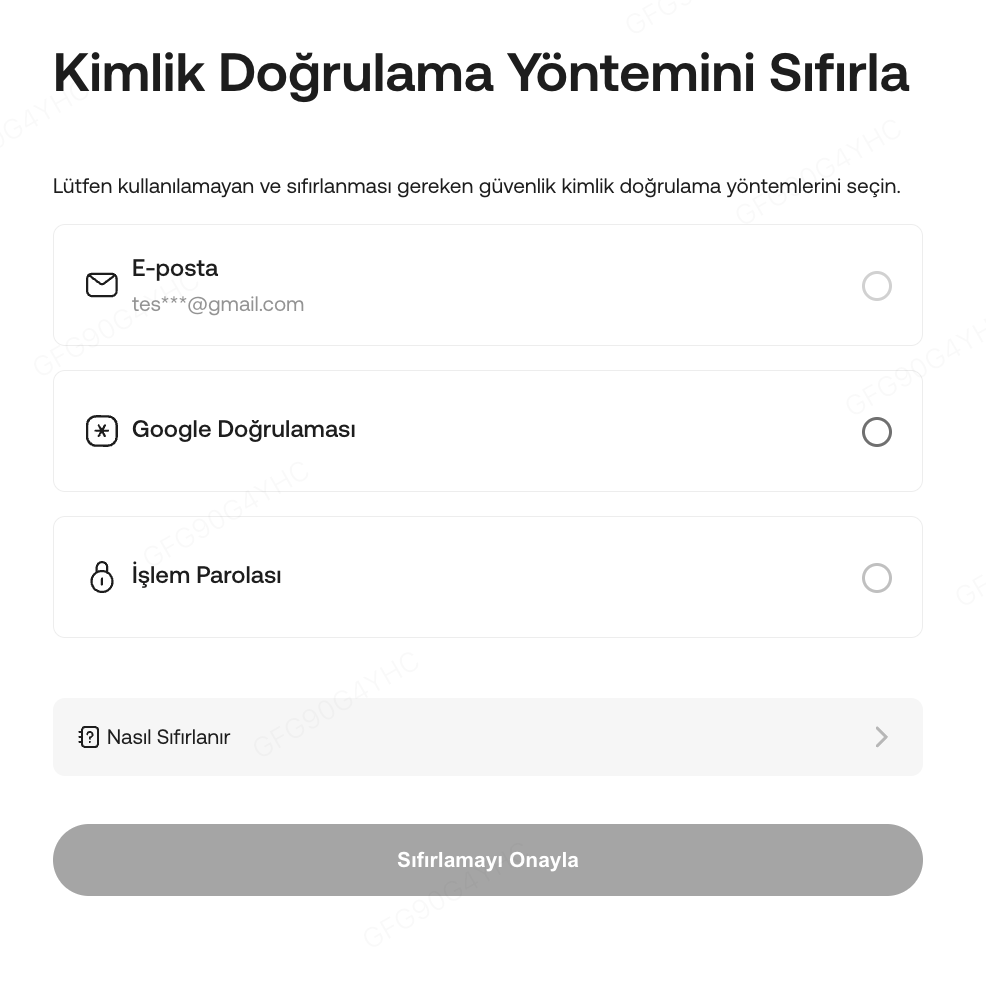
Step 2: Choose the unavailable authentication method and Confirm resetting authentication method.
Step 3: Complete the Verification process.
Step 4: Bind your new verification method and finalize the process.
Note:
a. If your account is registered with phone number only, you may be required to link your account with email address.
b. Please note that the withdrawal service will be suspended for the next 24 hours after resetting the account security settings.
c. Your request may take 48 hours to be processed.