How to Change Email Address
To set up a KuCoin TR account, you must register with an email address or phone number. Your email address serves as a verification method for withdrawals, changes to account security settings, and API creation, etc. This article will guide you on how to link an email address to your KuCoin TR account or change your registered email address.
Contents
1. How to Link an Email Address
2. How to Change Your Email Address
3. How to Change Your Email Address if Security Settings are Unavailable
1. How to Link an Email Address
Step 1: Go to Security Settings, locate Email, and click on 'Link' to proceed.
Step 2: Complete the required security verification.
Step 3: On the next page, enter the email address you wish to link and click 'Send'. A code will then be sent to your email address. Enter the six-digit code and click 'Activate'. Your email address will now be successfully linked to your KuCoin TR account.
Note:
a. If you are using an SMS code as the security verification method, remember to click the 'Send' button to request it. SMS verification codes expire in 10 minutes.
b. Once an email address is registered, it cannot be unlinked. Users can only change the registered email address.
2. How to Change Your Email Address
Step 1: After logging in to your KuCoin TR account, hover over your profile in the top-right corner and click 'Account Security'. Then, locate Email and click 'Change'.
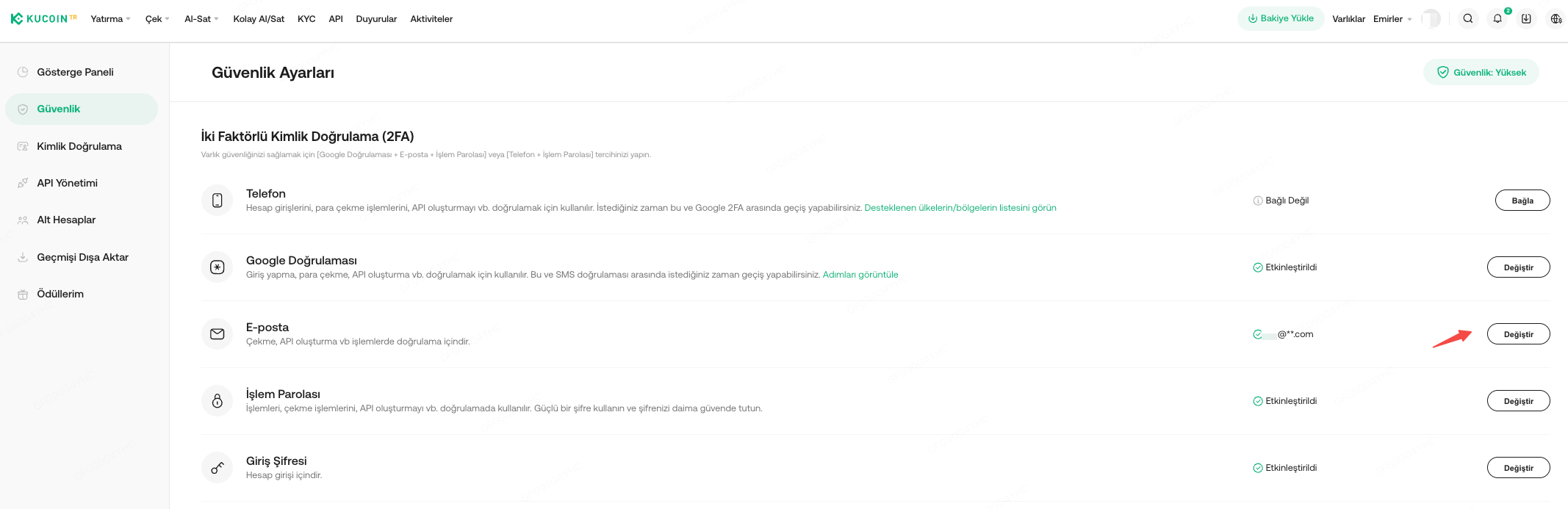
Step 2: Click 'Confirm', then complete the security verification by entering the code sent via SMS, Email, or Google 2FA, whichever is applicable.
Step 3: On the next page, enter the new email address you want to use, then click 'Send'. A code will be sent to your new email address. Enter the six-digit verification code and click 'Submit'.
Note:
a. Please ensure that you click the 'Send' button to request the code. The email verification code is valid for 10 minutes.
b. Once your email address has been changed, the new email address will take effect immediately. For security purposes, the withdrawal function will be disabled for 24 hours after changing your email address.
3. How to Change Your Email Address if Security Settings are Unavailable
Step 1: Go to the KuCoin TR Help Center and click 'Reset Authentication Method'. You can also click here to access the 'Reset Authentication Method' page.
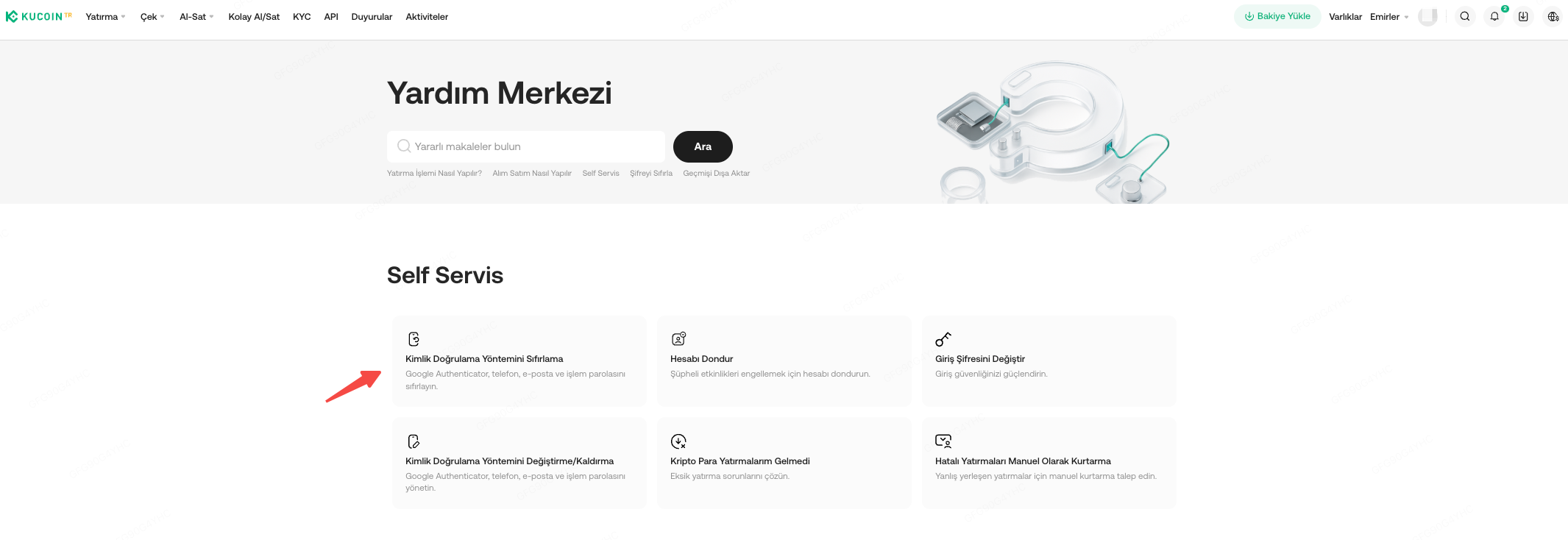
Step 2: Select Email and click 'Confirm'. Then, click 'Continue' when prompted.
Step 3: Complete the security verification by entering the code sent via SMS, Email, or Google 2FA, whichever is applicable.
Step 4: Enter the new email address you wish to use and click 'Send' to request the Email Verification Code. The code will be sent to your new email address. Enter the six-digit code and click 'Activate' to complete the email change process.
Note:
a. The withdrawal service will be suspended for 24 hours after resetting your account security settings.
b. Your request may take up to 48 hours to be processed.
c. According to SPK and MASAK regulations, we are required to collect phone numbers and email information from customers and retain this information as part of KYC data. Unbinding your phone number and deleting this information could cause a breach of AML regulations.
d. For more information, please refer to this article: What Are Security Settings and How to Reset Them?
We hope this article has been helpful. If you have any other questions, please contact customer support directly, or submit a ticket for assistance.